Why Are Your Frame Rates Dropping During Gameplay?
Frame rate dictates the fundamental rhythm of interactive media. When a graphics card renders a scene, it calculates geometry, lighting, and physics before pushing the final image to the display. Complex environments with dense geometry or sudden particle effects force the rendering pipeline to stall, causing noticeable frame drops. Community observation suggests that players often chase raw maximum output, but consistent frame pacing is the true metric of visual smoothness.
Display panel adoption trends in recent years show a definitive shift toward 144Hz as the baseline enthusiast standard. To match this refresh rate, the system must achieve a frame time delivery of roughly 6.9 milliseconds. For older 60Hz displays, the target is around 16.7 milliseconds. Hitting these targets consistently reduces input latency and prevents the jarring stutter that ruins competitive matches.
How Do CPU and GPU Bottlenecks Affect Performance?
The processor acts as the director, preparing frame data and physics calculations, while the graphics card serves as the painter, rendering the final pixels. Identifying which component is holding the system back is the first step in any optimization process. Standard operating system task managers obscure micro-stutters due to their slow default polling rates. During practice, relying on dedicated hardware overlays with polling intervals set between 100ms and 500ms provides a much clearer picture.
A GPU bottleneck is typically indicated when graphics utilization thresholds register in the high 90s percent range. If the graphics card is operating significantly below this range, the processor is likely struggling to feed it data fast enough. CPU bottlenecks in heavily populated multiplayer hubs cannot be resolved by lowering GPU-bound settings like shadow resolution. Lowering graphical settings only helps if the system is genuinely GPU-bound.
Field Note: Always monitor per-core processor usage rather than overall utilization, as many game engines still rely heavily on a single primary thread.
Which In-Game Settings Consume the Most Resources?
Not all graphical sliders carry the same performance weight. Categorizing settings by their render pipeline impact helps isolate post-processing and lighting calculations from memory-bound assets like textures. Volumetric lighting and shadows are notoriously demanding. Volumetric lighting resolution scaling factors often calculate light scattering at 1/4 to 1/2 of the native display resolution, heavily taxing the compute units.
Anti-aliasing techniques also vary wildly in cost—traditional Multi-Sample Anti-Aliasing (MSAA) smooths edges by rendering them at higher resolutions, which crushes performance. Temporal Anti-Aliasing (TAA) offers a more efficient, albeit sometimes softer, alternative. Screen Space Reflections (SSR) and Ambient Occlusion provide depth and realism but carry a high cost-to-visual-benefit ratio.
Lowering texture quality on a system with 12GB of VRAM but a weak GPU core will yield zero FPS improvement. Modern 1080p texture packs require upward of 6.5GB of VRAM allocation, meaning they only impact performance if the physical memory buffer is exceeded.
In-Game Settings Performance Impact Matrix
| Setting | GPU Load Impact | VRAM Impact | Recommended Baseline |
|---|---|---|---|
| Volumetric Clouds/Fog | High | Low | Medium |
| Shadow Resolution | High | Medium | Low/Medium |
| Texture Quality | Low | High | High (if VRAM permits) |
How Should You Configure Settings for Maximum FPS?
Structuring the optimization sequence requires isolating variables. Adjust one rendering subsystem at a time to accurately measure performance deltas. Start by setting the game to native resolution in exclusive fullscreen mode to minimize operating system interference.
Important: Exclusive fullscreen mode optimizations are sometimes bypassed by modern operating systems utilizing forced borderless windowed optimizations for overlay compatibility.
Next, target the heaviest hitters. Drop volumetric clouds and water physics to medium or low. Shadow map resolution reductions from 4096x4096px to 1024x1024px often reclaim massive amounts of frame time without ruining the visual aesthetic. Run iterative benchmarking loops lasting 3 to 5 minutes in high-density game environments to verify stability. Finally, disable motion blur and depth of field. These cinematic effects consume rendering resources while actively hindering competitive visibility. This methodical approach is a reliable way to stabilize frame delivery.
Can Upscaling Technologies Improve Frame Rates Without Quality Loss?
Rendering a game at a lower internal resolution and upscaling it to fit the display drastically reduces the graphics workload. Spatial upscaling stretches the image and applies a sharpening filter, which can introduce visual artifacts. Conversely, AI-driven solutions like NVIDIA's Deep Learning Super Sampling (DLSS) reconstruct the image using temporal data and machine learning algorithms.
Based on our testing, evaluating upscaling presets involves analyzing the internal render resolution fractions required to reconstruct the final output image. Quality presets render at roughly two-thirds of native resolution on each axis. Balanced presets render at not far from 58% of native resolution, reducing total pixel rendering load by over half. Selecting the 'Quality' or 'Balanced' options maintains visual fidelity while securing significant performance gains. This technique can meaningfully extend the viability of older hardware.
When Do Software Tweaks Stop Improving Performance?
While our methodology isolates rendering subsystems, it is critical to acknowledge the hard limits of aging silicon. Software optimization cannot overcome severe hardware obsolescence. There is a definitive boundary between software configuration and hardware failure, often revealed by tracking clock speed degradation under sustained thermal loads.
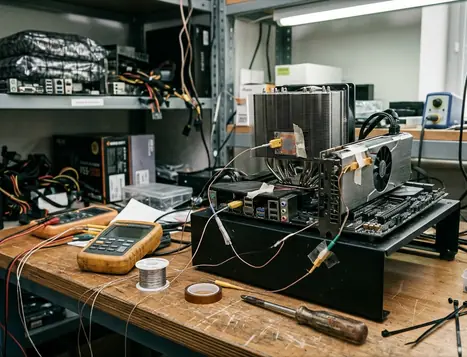
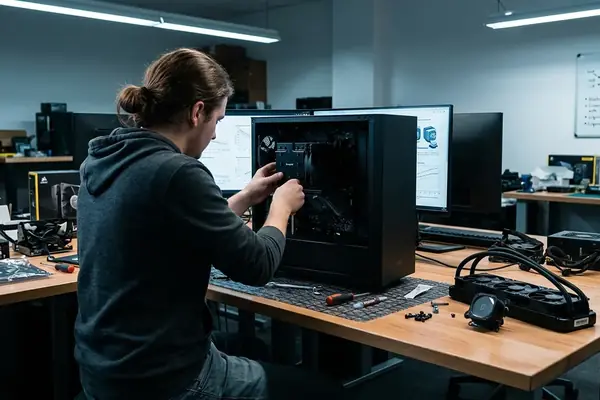
Thermal throttling will negate any in-game settings optimizations. When a processor or graphics card overheats, thermal junction limits trigger aggressive clock downshifting between 83°C and 95°C to prevent physical damage. Sustained load periods of 15 to 30 minutes are required to saturate budget cooling solutions, at which point frame rates will plummet regardless of graphical settings.
Setting realistic expectations for budget hardware running modern, unoptimized titles is essential. An optimal configuration minimizes the load, but aging silicon has hard limits.
Bottom Line: If your system is actively downclocking to survive thermal saturation, no combination of low settings will restore smooth gameplay until the cooling solution is addressed.