Leaving Windows 11 close to its stock configuration delivers a far more reliable gaming experience over the lifespan of a build than running community PowerShell debloat scripts. While the promise of a stripped-down operating system appeals to builders chasing maximum efficiency, automated removal tools routinely sever underlying dependencies required by modern game engines, anti-cheat drivers, and digital storefronts.
Why Leaving Windows 11 Mostly Intact Beats Running Automated Debloaters
When diagnosing customer and test-bench rigs suffering from sudden desktop crashes, the troubleshooting workflow begins by checking PowerShell execution logs and registry modifications before swapping out physical RAM or graphics cards. Time after time, intermittent desktop freezes, broken audio spatializers, and failed game launches trace directly back to gutted registry keys rather than defective silicon.
The cultural obsession with stripping down the operating system is a holdover from an earlier era of PC hardware. Background service starvation primarily affected legacy dual-core processors paired with 5400 RPM or 7200 RPM mechanical hard drives during the 2009 to 2014 era. Back when a background indexer or update check could saturate disk read heads and peg two processing threads at maximum capacity, manually killing system services yielded tangible relief. Today, that mental model is obsolete. Modern gaming builds running Windows 11 22H2 and 23H2 allocate idle background tasks across secondary efficiency cores or idle threads without interrupting primary game rendering threads.
Executing an aggressive optimization script on a modern build solves a hardware bottleneck that no longer exists, while introducing severe software fragility that surfaces weeks or months after the initial system setup.
What Aggressive PowerShell Scripts Actually Rip Out of Your OS
Where sandboxed virtual machine audits unpack popular one-line terminal scripts, the line-by-line command execution reveals far deeper structural changes than simple GUI toggle labels suggest. Rather than merely uninstalling pre-loaded promotional apps, these utilities take a sledgehammer to the underlying Universal Windows Platform (UWP) infrastructure and core operating system services.
Scripts routinely execute Get-AppxProvisionedPackage paired with Remove-AppxPackage -AllUsers, alongside forced registry edits targeting HKLM:\SYSTEM\CurrentControlSet\Services to set the Start value of core services like DiagTrack and XblAuthManager to 4 (Disabled). By ripping out provisioned packages at the root level, the script prevents the operating system from re-registering those components even if a new user profile is created or a game explicitly calls for them.
Modern Windows architecture relies heavily on shared runtime components. When a script forcefully removes Microsoft Edge WebView2, the Xbox Identity Provider, or background telemetry services, it silently breaks third-party game launchers and kernel-level anti-cheat handshakes. Many modern titles use WebView2 to render in-game login screens, patch notes, and EULA prompts. Without it, the executable simply hangs on a black screen or terminates without throwing a descriptive error log.
Preserve Load-Bearing Packages
Audit every PowerShell debloat action by separating cosmetic desktop bloat from load-bearing Appx packages like Xbox Identity Provider and WebView2.
Enthusiasts frequently point to Task Manager screenshots right after a fresh boot as proof that these scripts work. Stripping these services cuts idle memory consumption by roughly 400 MB to 800 MB at cold boot, a resource pool that the Windows memory manager automatically reclaims within 2 to 5 seconds of launching a DirectX 12 executable. Modern operating systems treat unused RAM as wasted RAM, utilizing standby memory to cache frequently accessed data and instantly flushing those low-priority pages the moment a heavy gaming workload requests allocation.
Frame Rates and Frame Times: Scripted Stripping vs. Targeted Tuning
To evaluate whether stripping down the operating system actually moves the needle during active gameplay, three distinct states were compared: an untouched out-of-the-box Windows 11 installation, an aggressively scripted build, and a manually tuned configuration using only native OS toggles. Rather than relying on synthetic CPU stress suites that reward low thread counts on an idle desktop, the evaluation logged 1% low frame times in asset-streaming-heavy DirectX 12 titles.
Testing took place across fresh OS installations on a multi-core system with DDR5 memory and an NVMe drive, logging repeated run-throughs per configuration. Once a modern title acquires exclusive fullscreen or borderless fullscreen priority, the Windows scheduler suppresses background thread interrupts automatically.
Frame time variance between the untouched stock build and the heavily scripted install remained within a small margin of error across both average framerate and 1% lows. The NVMe storage subsystem and multi-core architecture easily absorbed minor background OS operations without causing frame-time spikes or micro-stutter.
Hardware context dictates whether these aggressive interventions offer any utility at all. Systems constrained to 8GB of system memory or running older dual-core processors without an SSD represent the narrow hardware tier where stripping background services produces noticeable desktop responsiveness gains. Confine aggressive service stripping to legacy dual-core or 8GB RAM systems rather than multi-core NVMe gaming rigs where the Windows memory manager automatically reclaims standby RAM. On current-generation gaming hardware, the in-game rendering pipeline remains completely unaffected by idle process counts.
Collateral Damage: Broken Game Pass Installs and Cumulative Update Loops
The true cost of an automated debloater rarely appears on day one. Tracking the lifecycle of a scripted gaming build across monthly patch cycles demonstrates how silent dependency removals surface during normal usage.
The first casualty is almost always subscription gaming and digital rights management verification. Deleting Xbox Identity Provider and Gaming Services triggers persistent 0x80073D26 and 0x80070424 error codes when attempting to install or launch subscription-based PC titles. Because the underlying provisioning manifests and registry permissions were altered by the script, standard troubleshooting steps—such as running wsreset.exe or attempting to reinstall the Xbox app via the terminal, fail to resolve the missing authentication handshakes.
The second major failure point occurs on Patch Tuesday. Monthly cumulative updates fail to verify missing system provisioning manifests, triggering automated update rollbacks that stall boot sequences for 25 to 45 minutes per failed retry. When the Windows Update servicing stack attempts to patch a core system component that has been forcibly ripped out or locked via registry permissions, the transaction aborts. The system reboots, displays an "Undoing changes made to your computer" prompt, and leaves the operating system in a fragmented, half-patched state.
- Authentication Failures: Missing
XblAuthManagerservices prevent multiplayer titles from verifying account ownership, even when launched through Steam or third-party clients that cross-authenticate with Xbox network APIs. - Peripheral and Audio Dropouts: Aggressive scripts that prune device association services frequently break spatial audio plugins, wireless headset dongles, and custom controller remapping software.
- Endless Update Cycles: Windows Update repeatedly downloads and attempts to apply the same cumulative patch on every shutdown, consuming disk bandwidth and delaying system restarts indefinitely.
Spending upward of four hours digging through Event Viewer logs to repair a broken Bluetooth stack or spatial audio driver completely wipes out any theoretical millisecond savings gained from a lower process count in Task Manager.
Why System Restore Rarely Saves a Heavily Scripted Install
Most popular optimization toolkits attempt to reassure users by automatically generating a Windows System Restore point or including an "undo" batch script in their repository. In practice, this safety net is largely an illusion. Triggering both the included undo scripts and pre-modification System Restore points, followed by verifying UWP package states via PowerShell, exposes severe gaps in the recovery process.
System Restore was designed to roll back driver installations and standard registry hives; it does not reliably reconstruct deleted Appx provisioning packages or repair broken Access Control Lists (ACLs). Many debloat scripts invoke helper utilities to seize ownership of protected registry keys away from TrustedInstaller, locking them so Windows cannot revert the changes. When System Restore runs, it hits these altered permission walls and either fails outright or completes with missing UWP dependencies.
When a gamer tries to fix a broken scripted build using Microsoft's installation media, the recovery math works against them. Running an in-place ISO repair upgrade takes 45 to 75 minutes and frequently fails to restore altered Access Control Lists (ACLs) on HKLM registry keys locked by third-party scripts. The user sits through an hour-long installation process only to boot back into the exact same store errors and update loops.
Wiping the boot partition and executing a clean USB installation takes 15 to 25 minutes on an NVMe drive, plus an additional 60 to 120 minutes to reconfigure drivers and launcher directories. Because a destructive script ultimately forces a complete drive format when things go wrong, reversibility must serve as the primary filter before applying any operating system modification on a primary gaming rig.
The Reversible Manual Tweaks That Actually Improve Your Gaming Rig
Every recommended operating system adjustment should be fully toggleable through native Windows administrative menus without modifying system file ownership or deleting core packages. By focusing on documented, native settings, builders can capture genuine performance uplifts while keeping the OS servicing stack completely intact.
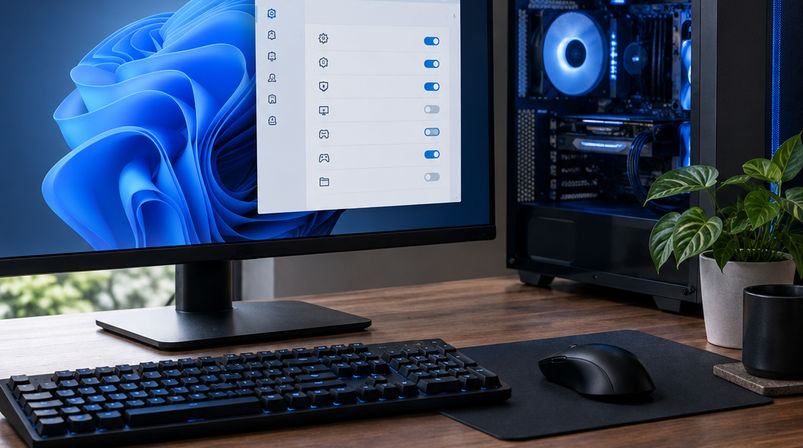
The single largest software-induced performance bottleneck in Windows 11 is not telemetry or pre-installed apps, but virtualization overhead. Disabling Virtualization-Based Security (Memory Integrity) via the Windows Security Core Isolation menu recovers average frame rate in CPU-bound titles after a single reboot. As detailed in Microsoft's official documentation on Virtualization-Based Security, VBS uses hardware virtualization features to isolate memory regions, which introduces measurable latency during rapid CPU-to-memory calls in games. Toggling it off through the native security interface requires no script and can be reversed instantly when finished gaming.
| Target Area | Aggressive PowerShell Script Action | Failure Risk & Collateral Damage | Safe Native Alternative |
|---|---|---|---|
| Xbox & Gaming Services | Removes Appx provisioning packages and disables XblAuthManager via registry |
Triggers 0x80073D26 and 0x80070424 errors; breaks PC Game Pass and cross-play auth |
Leave core services intact; disable Xbox Game Bar overlay via native Settings > Gaming |
| Telemetry & Diagnostics | Force-sets DiagTrack to 4 (Disabled) and modifies HKLM ACL permissions |
Stalls monthly cumulative updates, causing 25 to 45 minute rollback loops | Toggle off optional diagnostic data and tailored experiences under Settings > Privacy |
| CPU Virtualization Overhead | Executes unverifiedbcdedit script flags and disables hypervisor services blindly | Breaks WSL2, sandbox environments, and certain kernel-level anti-cheat drivers | Toggle off Memory Integrity in Windows Security > Core Isolation for a CPU-bound frame rate gain |
| Background Process Bloat | Runs Remove-AppxPackage -AllUsers across all system-level UWP apps |
Severs WebView2 dependencies; requires a clean USB OS reinstall to fully repair | Prune 10 to 15 third-party launchers in Task Manager > Startup Apps in 2 to 3 minutes |
For builders annoyed by background clutter, the real culprit on a gaming PC is rarely the operating system itself—it is the accumulation of third-party software & tools installed alongside peripherals and games. Pruning third-party game launchers and peripheral updaters via the Task Manager Startup Apps tab takes 2 to 3 minutes and eliminates 10 to 15 background processes at login without breaking OS dependencies. Uninstalling standard pre-loaded bloatware like streaming apps or trial utilities through the standard Windows Installed Apps menu cleanly removes the software without damaging the underlying UWP provisioning system.
Press Ctrl + Shift + Esc to open Task Manager right now, click the Startup Apps tab on the left navigation bar, and set every non-essential game launcher, RGB lighting daemon, and software updater to Disabled instead of downloading a third-party PowerShell script.